Docker Interview Guide: Images, Containers, Networking & Production Debugging
From Union Filesystems and cgroups to Multi-Stage Builds and Debugging OOMKilled Containers in Production
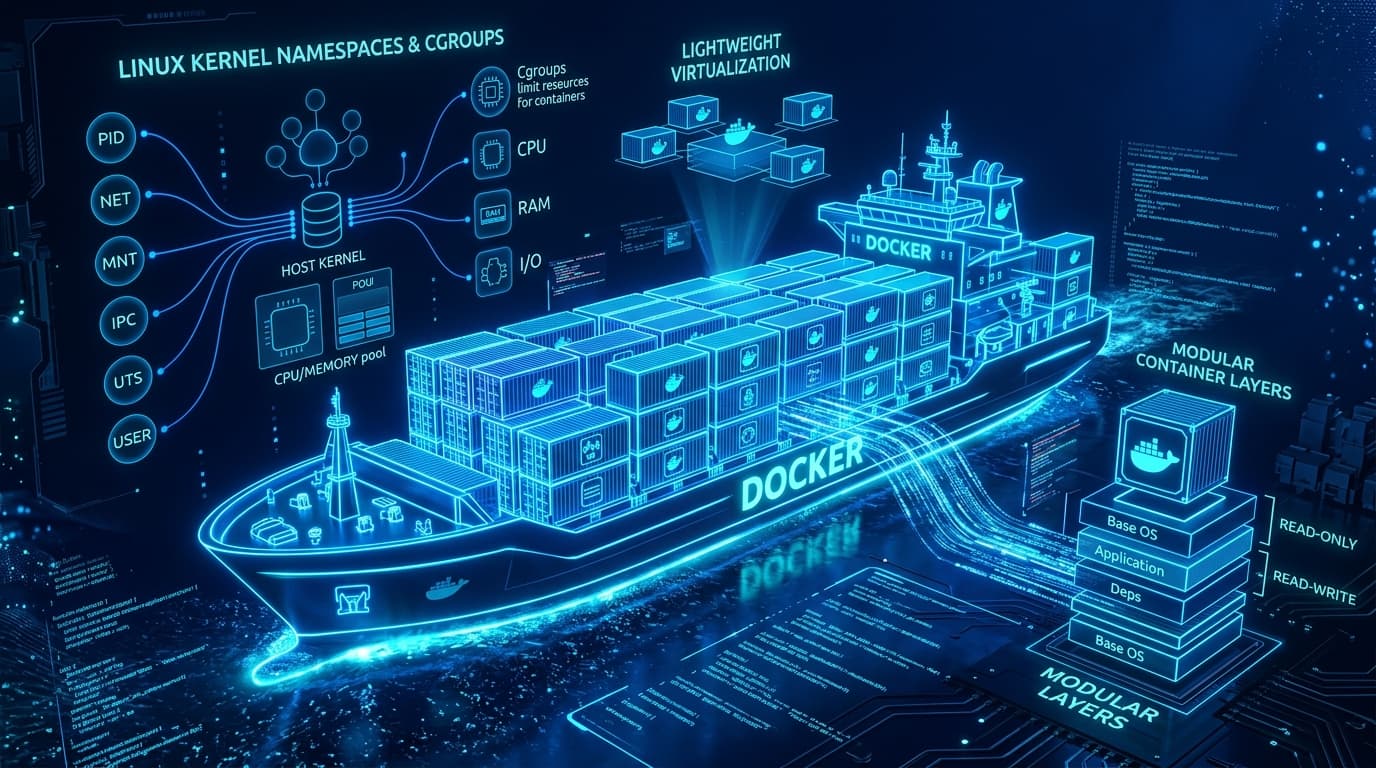
What You Must Master to Clear This Track
- Treat every Dockerfile instruction as a cache-keyed, immutable layer — instruction order determines whether a one-line code change forces a full dependency reinstall.
- Containers are not lightweight VMs: isolation comes from Linux namespaces (pid, net, mnt, uts, ipc, user) and resource governance comes from cgroups, not a hypervisor.
- Multi-stage builds should be the default for any compiled or transpiled language — ship the runtime, never the build toolchain.
- Pick a network mode deliberately: user-defined bridge for single-host service discovery, host for latency-sensitive workloads, overlay for multi-host Swarm/K8s traffic.
- OOMKilled (exit 137) and accumulating zombie processes are two of the most common production incidents — both have a specific, diagnosable root cause and a specific fix.
Step-by-Step Study Plan
Follow this sequential roadmap designed to take you from core foundations to advanced architecture and mock interviews.
Union Filesystems, Build Cache & Multi-Stage Builds
How OverlayFS merges read-only layers with a writable layer, how the build cache is keyed, and how multi-stage builds strip dev dependencies out of production images.
- •Explain how each RUN/COPY/ADD instruction becomes an immutable, content-addressed layer.
- •Rewrite a bloated single-stage Dockerfile into a multi-stage build with a slim runtime base.
- •Reduce final image size using .dockerignore, minimal base images, and dependency-manifest-first COPY ordering.
- •Run `docker history <image>` and `docker image inspect` to see the exact size and command behind every layer.
- •Practice reordering Dockerfile instructions so cache invalidation only happens where source code actually changed.
- •Compare `node:18`, `node:18-slim`, and `node:18-alpine` image sizes and glibc/musl compatibility trade-offs.
Namespaces, cgroups, Network Modes & Storage Drivers
The kernel primitives that make a container feel like an isolated machine, plus how to choose between bridge, host, and overlay networking and between volumes, bind mounts, and tmpfs.
- •Trace the full `docker run` lifecycle: dockerd -> containerd -> containerd-shim -> runc -> namespaces + cgroups + pivot_root.
- •Compare default bridge, user-defined bridge, host, and overlay network drivers and when each is appropriate.
- •Explain overlay2 storage driver mechanics and why writes to the container layer trigger copy-on-write costs.
- •Inspect `/proc/<pid>/ns/*` for a running container to see its namespace file descriptors directly.
- •Stand up a user-defined bridge network and verify embedded DNS-based service discovery between two containers.
- •Read cgroup v2 files directly (`memory.max`, `memory.current`, `cpu.max`) rather than only trusting `docker stats`.
OOMKilled Containers, Zombie Processes & Resource Limits
Diagnosing exit code 137, understanding why PID 1 must reap children, and setting memory/CPU limits that match real usage instead of guesses.
- •Diagnose an OOMKilled container using `docker inspect`, `dmesg`, and cgroup memory accounting.
- •Explain why containers without an init process accumulate zombie/defunct processes and how `--init` fixes it.
- •Set memory and CPU limits from measured p95 usage instead of arbitrary defaults, and understand throttling vs killing.
- •Practice reading `docker inspect --format='{{.State.OOMKilled}}'` output during a mock incident.
- •Run a container with a process that forks children and orphans them; observe zombies with and without `--init`.
- •Build a checklist for 'container exits immediately' debugging: logs, exit code, entrypoint, foreground process requirement.
1. Images, Layers & the Union Filesystem
A Docker image is not a single file — it is a stack of read-only layers merged at runtime by a union filesystem. Understanding how those layers are built, cached, and merged is the single highest-leverage topic in a Docker interview.
Each image layer is a read-only directory diff. OverlayFS stacks them as lowerdir entries and adds one writable upperdir for the running container, presenting a single merged view without copying every layer's contents.
Every instruction produces a layer keyed by the hash of the previous layer plus the instruction and its inputs. If any earlier layer's cache key changes, every layer after it must rebuild, even if the later instructions themselves are unchanged.
A running container gets one thin writable layer on top of the image's read-only layers. The first write to any file triggers a full copy of that file up into the writable layer before the modification is applied.
The entire build context (everything in the directory passed to `docker build`) is sent to the daemon before the first instruction runs. An oversized context (node_modules, .git, build artifacts) slows every build and can leak files into cache keys unnecessarily.
# ---- Stage 1: install deps & compile ----
  FROM node:18 AS builder
  WORKDIR /app
  COPY package.json package-lock.json ./
  RUN npm ci
  COPY . .
  RUN npm run build

  # ---- Stage 2: slim production runtime ----
  FROM node:18-alpine AS runner
  WORKDIR /app
  ENV NODE_ENV=production
  COPY package.json package-lock.json ./
  RUN npm ci --omit=dev && npm cache clean --force
  COPY --from=builder /app/dist ./dist
  RUN addgroup -S app && adduser -S app -G app
  USER app
  EXPOSE 3000
  HEALTHCHECK --interval=30s --timeout=3s --retries=3 \
    CMD wget -qO- http://localhost:3000/healthz || exit 1
CMD ["node", "dist/server.js"]- Order Dockerfile instructions from least to most frequently changing: base image, OS packages, dependency manifests, `npm ci`/`pip install`, then application source code last.
- Use `docker build --progress=plain` and `docker history <image>` to see exactly which layer is bloating the image before optimizing blindly.
- Copying the entire source tree (`COPY . .`) before installing dependencies invalidates the dependency-install cache layer on every single code change.
- Forgetting a `.dockerignore` lets `.git`, `node_modules`, and local `.env` files bloat the build context and occasionally leak secrets into layers.
2. Namespaces & cgroups: How Containers Achieve Isolation
A container is an ordinary Linux process with a restricted view of the system. That restricted view comes from two independent kernel mechanisms: namespaces (what the process can see) and cgroups (what the process can use).
The container's first process becomes PID 1 inside its own PID namespace, unaware of any other process on the host. If that PID 1 exits, the entire namespace and every process in it is torn down.
Each container gets its own network stack (interfaces, routing table, iptables rules). A veth pair connects the container's virtual interface to a bridge on the host, which is how bridge-mode networking is implemented under the hood.
The container sees its own private filesystem root, built by mounting the merged OverlayFS view and calling pivot_root so the host's real filesystem is no longer reachable from inside.
Control groups enforce resource ceilings independent of namespaces: memory.max, cpu.max, and pids.max are written by the container runtime and enforced directly by the kernel scheduler and memory manager.
The full call chain from the Docker CLI down to a namespaced, cgroup-limited process on the host kernel.
- If asked 'containers vs VMs', anchor the answer on the kernel: containers share the host kernel and get isolation from namespaces/cgroups; VMs virtualize hardware and run a separate kernel entirely.
- Mention seccomp profiles and Linux capabilities (`--cap-drop`, `--cap-add`) when discussing container security — namespaces isolate views, but capabilities and seccomp restrict what syscalls a process may make at all.
- Assuming root inside a container is equivalent to root on the host — without user namespace remapping, container root and host root share the same UID 0.
3. Networking Modes, Volumes & Storage Drivers
Choosing a network driver and a persistence strategy are two of the most common 'design this for production' questions — both have a small number of options with very different trade-offs.
The default bridge network has no built-in DNS and requires legacy --link flags for name resolution. A user-defined bridge network gives every container automatic DNS-based service discovery by container name.
The container shares the host's network namespace directly — no veth pair, no NAT, no port mapping overhead. Lowest latency, but the container binds host ports directly and loses network isolation.
Used in Swarm and conceptually mirrored by Kubernetes CNI plugins: a VXLAN-encapsulated network spans multiple hosts so containers on different machines can reach each other by virtual IP as if on one LAN.
Named volumes are managed entirely by Docker under /var/lib/docker/volumes and are the recommended way to persist data. Bind mounts map an arbitrary host path in, useful for config/dev workflows. tmpfs mounts live in host RAM only and never touch disk.
services:
    api:
      image: myorg/api:1.4.0
      networks: [backend]
      volumes:
        - api-data:/var/lib/api        # named volume, backed by the overlay2 storage driver
        - ./config:/etc/api:ro         # bind mount, read-only, for local config injection
      deploy:
        resources:
          limits:
            memory: 512M
            cpus: "1.0"

  networks:
    backend:
      driver: bridge

  volumes:
    api-data:
driver: local- When asked to compare storage drivers, lead with overlay2 (the modern default on most Linux distros) versus devicemapper (legacy, used on older RHEL/CentOS setups) and note overlay2's better performance for most workloads.
- State explicitly that writes inside a container's own writable layer are copy-on-write and slower for write-heavy workloads — that is exactly why databases should always run against a volume, not the container's overlay filesystem.
- Publishing a port with `-p` without realizing it goes through the docker-proxy/iptables NAT path, which adds a small but measurable latency compared to host networking.
- Relying on container IP addresses instead of DNS names for service-to-service calls — IPs change on every container recreation.
4. Production Debugging: OOMKilled Containers, Zombie Processes & Resource Limits
The debugging questions are where interviewers separate candidates who have only read about Docker from those who have carried a pager. Two incidents come up constantly: OOMKilled containers and zombie process accumulation.
When a container's cgroup memory.current hits memory.max, the kernel's cgroup OOM killer sends SIGKILL to the largest consuming process in that cgroup. Docker reports this as exit code 137 and sets State.OOMKilled to true.
In a normal OS, init (PID 1) reaps terminated children via wait(). A container's PID 1 is usually the application itself, which rarely calls wait() on orphaned grandchildren, so they pile up as defunct zombie entries.
Running `docker run --init` injects a tiny init process (tini) as real PID 1, which forwards signals to the application and reaps orphaned zombies on its behalf, without requiring any application code changes.
Exceeding a memory limit triggers the OOM killer and terminates the process. Exceeding a CPU limit (cpu.max) never kills anything — the kernel scheduler simply throttles the process's runnable time, visible as nr_throttled in cpu.stat.
# Was this container's last exit caused by the OOM killer?
  docker inspect --format='{{.State.OOMKilled}} exit={{.State.ExitCode}}' my-service

  # Live memory + CPU usage compared against the limits you configured
  docker stats --no-stream my-service

  # Read the raw cgroup v2 accounting the kernel is actually enforcing
  cat /sys/fs/cgroup/memory.max
  cat /sys/fs/cgroup/memory.current
  cat /sys/fs/cgroup/memory.stat | grep -E "pgmajfault|oom"

  # Kernel-level confirmation an OOM kill happened on the host
dmesg -T | grep -i "killed process"- Always ask 'was the limit set from measured usage or guessed?' — most OOMKilled incidents trace back to a memory limit copy-pasted between services with very different footprints.
- When a container exits immediately after `docker run`, check three things in order: the exit code (`docker inspect`), whether the entrypoint process is meant to run in the foreground, and the last lines of `docker logs`.
- Restarting an OOMKilled container without raising the limit or fixing the leak — the restart policy just delays the next crash.
- Running a multi-process container (e.g. an app plus a cron daemon) without `--init`, silently accumulating zombies until the PID table fills up.
Cutting Deploy Times and Killing Repeated OOMKilled Crashes at a Fintech Startup
A Series B fintech's payments platform team ran a monolithic Node.js service built from a single-stage `node:18` image with the full build toolchain baked into production. During a promotional traffic spike, containers began restarting under OOMKilled every few minutes, and the on-call rotation was paging nightly.
- 1Audited the existing Dockerfile with `docker history` and found no stage separation — devDependencies, the TypeScript compiler, and source maps were all shipping to production, inflating the image to 1.4GB.
- 2Rewrote the build as a multi-stage Dockerfile: a `node:18` builder stage ran `npm ci` and `npm run build`, while a `node:18-alpine` runner stage copied in only the compiled `dist/` output and production dependencies.
- 3Added an explicit non-root `USER` directive and switched container startup to use `--init`, since the service spawned a background worker pool whose orphaned children were accumulating as zombies.
- 4Measured real p95 memory usage with `docker stats` over a week of production traffic and set explicit `--memory` and `--memory-swap` limits matched to that measurement instead of the previously copy-pasted defaults.
- 5Added a CI canary step running `docker inspect --format='{{.State.OOMKilled}}'` against a load-tested container before promoting any new image to production.
Top Must-Know Interview Questions & Model Answers
Q1: How do Docker image layers work, and why does instruction order in a Dockerfile matter?
- •The cache key for a layer is derived from the parent layer's key plus the instruction text and, for COPY/ADD, a hash of the copied files' contents.
- •Placing rarely-changing instructions (base image, OS packages, dependency manifests + install) before frequently-changing ones (application source) maximizes cache hits.
Q2: What is the difference between COPY and ADD in a Dockerfile?
- •ADD's implicit tar-extraction and URL-fetching behavior is considered surprising and is discouraged by Docker's own best practices for anything other than extracting a local archive.
- •COPY is the recommended default because its behavior is fully predictable and it does not silently download remote content into a layer.
Q3: How does a multi-stage build reduce final image size, and what actually crosses between stages?
- •A typical Node/Go/Java multi-stage build compiles or transpiles in a 'fat' stage based on a full SDK image, then copies only the compiled artifact into a slim runtime base like alpine or distroless.
- •This commonly cuts image size by 4-10x and shrinks the attack surface, since the runtime image never contains build tools, package manager caches, or source code.
Q4: What is a distroless or scratch base image, and when should you use one?
- •Distroless dramatically shrinks the attack surface (no shell means no easy interactive shell for an attacker who gains code execution) and reduces CVE scan noise from unused OS packages.
- •The trade-off is debuggability: without a shell, you cannot `docker exec` into the container to poke around, so teams often keep a debug variant image for troubleshooting.
Q5: Explain how OverlayFS merges image layers into a single filesystem view.
- •A file lookup walks the stack from the topmost writable layer down through each lowerdir until it finds the file, so higher layers transparently shadow lower ones with the same path.
- •The first modification to a file that only exists in a lower read-only layer triggers a full copy-up of that file into the upperdir before the write is applied, which is why very large single files with frequent small writes perform poorly in a container's writable layer.
Q6: Beyond multi-stage builds, what techniques shrink a Docker image's size?
- •Cleaning up caches in a separate RUN instruction after the install does not shrink the image, because the earlier layer already committed the cache to disk; the cleanup must happen in the same RUN statement.
- •`.dockerignore` both speeds up the build (smaller context upload) and prevents accidentally shipping `.git`, local `.env` files, or test fixtures into a layer.
Q7: What Linux namespaces does Docker use to isolate a container, and what does each one hide?
- •PID namespace: the container's first process becomes PID 1 in its own tree and cannot see host or sibling-container processes.
- •Net namespace: private interfaces and routing table, connected to the host via a veth pair into a bridge.
- •Mnt namespace: a private mount table so the container's root filesystem view is independent of the host's.
Q8: How do cgroups enforce resource limits on a container, and what happens at the boundary?
- •`docker run --memory=512m --cpus=1` translates directly into writes to that container's cgroup's memory.max and cpu.max files.
- •pids.max caps the number of processes/threads a container can fork, which is an important defense against fork-bomb style incidents inside a compromised container.
Q9: What fundamentally distinguishes a container's isolation model from a virtual machine's?
- •Because containers share a kernel, container startup is near-instant (milliseconds) versus a VM's full OS boot (seconds to minutes), and container density per host is far higher.
- •The trade-off is a smaller isolation boundary: a kernel-level vulnerability can in principle be exploited across containers on the same host, whereas a VM escape requires breaking the hypervisor itself.
Q10: Walk through exactly what happens when you run `docker run <image>`.
- •runc builds the container per the OCI runtime spec: it calls clone()/unshare() for the namespaces, writes the cgroup limit files, and pivot_roots into the image's merged OverlayFS root.
- •The containerd-shim stays alive as the direct parent of the container process so that containerd itself can be restarted or upgraded without killing running containers.
Q11: What is pivot_root and why does Docker use it instead of chroot?
- •A classic chroot escape re-mounts or references the old root via a retained file descriptor or relative path traversal; pivot_root combined with a private mount namespace removes the old root from the mount table entirely.
- •runc typically pivot_roots into the container's merged OverlayFS view and then unmounts the old root inside the new mount namespace so it is unreachable from inside the container.
Q12: What Linux capabilities and seccomp profiles does Docker apply by default, and why do they matter?
- •Capabilities split up what used to be all-or-nothing root privilege into fine-grained permissions (CAP_SYS_ADMIN, CAP_NET_RAW, etc.); `--cap-drop=ALL --cap-add=<specific>` follows least privilege.
- •The default seccomp profile blocks syscalls like `mount`, `reboot`, and raw `ptrace` variants that would otherwise let a compromised container affect the host or other containers even inside its namespaces.
Q13: Explain the default bridge network versus a user-defined bridge network in Docker.
- •On a user-defined bridge, Docker runs an embedded DNS server that resolves container names and Compose service names to their current IPs, which is essential since container IPs change on recreation.
- •Best practice is to always create an explicit network for a multi-container application rather than relying on the default bridge.
Q14: What is host networking mode, and what are its trade-offs?
- •Ports the container binds are the host's actual ports, so two containers using host mode cannot both bind the same port, and there is no per-container port remapping.
- •It is commonly used for latency-sensitive workloads (some data-plane proxies, monitoring agents) where the NAT/iptables hop of bridge networking is measurably significant.
Q15: How does an overlay network let containers on different hosts communicate?
- •Docker Swarm's overlay driver (and, conceptually, most Kubernetes CNI plugins like Calico/Flannel in overlay mode) wraps each packet with a VXLAN header carrying a virtual network identifier, then unwraps it on the receiving host.
- •This adds a small per-packet encapsulation overhead but removes the need for the physical network to know anything about individual container IPs.
Q16: How does DNS-based service discovery work inside a user-defined Docker network?
- •Because the resolver tracks live container IPs, service discovery keeps working correctly even after a container is recreated and gets a new IP address.
- •This embedded DNS only works within a user-defined network; containers on the default bridge do not get this resolution.
Q17: What is the difference between EXPOSE in a Dockerfile and the -p flag on docker run?
- •EXPOSE does enable `docker run -P` (capital P) to auto-publish exposed ports to random host ports, but without either -p or -P, exposed ports are not reachable from outside the container's network.
- •Two containers on the same user-defined network can reach each other's EXPOSEd ports directly without any publishing at all.
Q18: How does docker-proxy / iptables implement published ports under the hood?
- •The DNAT rule lives in the nat table's DOCKER chain, translating destination host:port to container-ip:port before the packet is routed to the bridge.
- •This NAT hop is exactly the small overhead that host networking mode avoids by not remapping ports at all.
Q19: What is the difference between a named volume, a bind mount, and a tmpfs mount?
- •Named volumes are portable across host paths and are the only option Docker actively manages (backup, driver plugins, `docker volume` commands); bind mounts couple the container to a specific host filesystem layout.
- •tmpfs is ideal for secrets or scratch data that must never be persisted to disk, at the cost of losing the data on container stop.
Q20: What are storage drivers like overlay2 and devicemapper, and how do you choose between them?
- •overlay2 generally offers better page-cache sharing and performance for typical workloads and is what Docker selects automatically when the kernel and backing filesystem support it.
- •Choosing a storage driver mainly matters when the host's kernel or filesystem doesn't support overlay2 out of the box, or for very specific I/O-pattern performance tuning.
Q21: Why do writes to a container's writable layer carry a copy-on-write penalty?
- •For a large file with only small modifications, this copy-up can be a surprisingly expensive one-time cost, which is a classic reason database or log-heavy workloads should never write to the container's own filesystem.
- •Subsequent writes to the same (now copied-up) file are cheap, since the file now lives entirely in the writable layer.
Q22: How do you persist and safely share data between multiple containers?
- •For genuinely concurrent writers, the application layer still needs its own coordination (file locks, a real database) — a shared volume alone does not provide transactional consistency.
- •Volume plugins extend this pattern to network-attached storage (NFS, cloud block/file storage) for multi-host sharing beyond a single Docker host.
Q23: What causes a container to be OOMKilled, and how do you diagnose it after the fact?
- •Diagnose with `docker inspect --format='{{.State.OOMKilled}}'`, cross-checked against `dmesg -T | grep -i 'killed process'` for kernel-level confirmation.
- •Common root causes: a memory limit set lower than real peak usage, a genuine memory leak, or an unbounded in-memory cache/buffer growing with traffic.
Q24: Why do zombie processes accumulate inside containers, and how does --init fix it?
- •Zombies consume a process table slot even though they use no CPU or memory, so enough of them accumulating can exhaust the pids.max limit or the kernel's PID space.
- •tini also correctly forwards signals like SIGTERM to the actual application process, which a naive shell-form CMD often fails to do.
Q25: What happens when a container exceeds its configured memory limit versus its CPU limit?
- •CPU throttling is visible as `nr_throttled`/`throttled_time` in cpu.stat and shows up as increased latency, not crashes — a very different failure signature from OOM kills.
- •This asymmetry means memory limits must be set close to real usage (too low = crashes), while CPU limits can be set more conservatively (too low = just slower, not fatal).
Q26: A container exits immediately after `docker run` with no obvious error. How do you debug it?
- •A container's lifetime is tied to PID 1; if PID 1 is a script that launches a background daemon and then exits, Docker considers the container finished even though the 'real' service thinks it's still starting.
- •Exit code 0 with no logs usually points to a foreground/daemonize mismatch; a non-zero code with a stack trace in logs points to an application-level crash.
Q27: How do you profile a 'noisy neighbor' container consuming excessive CPU or network on a shared host?
- •`docker stats` shows aggregate CPU/memory/network per container, but pinpointing a specific runaway thread often requires `nsenter --target <pid> --pid --net` to attach host tools to the container's namespaces directly.
- •Without CPU limits (cpu.max/--cpus) set, a single misbehaving container can starve every other container scheduled on the same host, which is why resource limits are a production requirement, not an optimization.
Q28: Explain Docker's restart policies and how they interact with health checks.
- •Plain Docker does not restart a container purely for being 'unhealthy' — restart policies only respond to the container actually exiting; it's Swarm/Kubernetes-level orchestration that acts on health status to reroute traffic or replace instances.
- •A restart policy alone can mask a real problem: `always` will keep relaunching an OOMKilled container into the same crash loop unless the underlying limit or leak is fixed.
Q29: How do you investigate high memory usage inside a running container without restarting it?
- •memory.stat breaks down usage into categories (anon, file cache, kernel structures), which distinguishes a real application leak from an inflated page cache that the kernel would reclaim under pressure anyway.
- •For language runtimes with GC, correlating a rising RSS with GC logs or a heap profile pinpoints whether it's a true leak or just an under-tuned GC/allocator.
Mistakes That Sink Otherwise Strong Candidates
Why it happens: It's the fastest way to get a working Dockerfile early in a project, and nobody revisits it once the app is 'working'.
The fix: Convert to a multi-stage build: compile in a fat builder stage, copy only the compiled output and production dependencies into a slim runtime stage.
Why it happens: Docker's default USER is root unless a Dockerfile explicitly sets otherwise, and it 'just works' in development.
The fix: Add an explicit non-root `USER` in the Dockerfile and, where the platform supports it, enable user namespace remapping so container root doesn't map to host root.
Why it happens: It's the default tag and avoids the friction of managing version numbers during rapid iteration.
The fix: Pin production deployments to immutable semantic version tags or image digests so a rollback is always possible and 'latest' can't silently change underneath a running service.
Why it happens: It's an easy step to forget when a project is scaffolded quickly, and the build still 'works' without it.
The fix: Add a `.dockerignore` mirroring `.gitignore` plus build artifacts, and audit layers with `docker history` to confirm nothing sensitive slipped in.
Why it happens: Local development never hits real memory pressure, so limits feel like unnecessary friction until an incident happens.
The fix: Measure real p95 usage with `docker stats` under production-like load, then set `--memory`/`--cpus` (or Kubernetes requests/limits) from that data, not from guesses.
Why it happens: Teams migrating from VM-based deployments carry over the 'one box runs everything' mental model.
The fix: Split into one process per container wherever possible; where a supporting process (cron, log shipper) is unavoidable, run with `--init` so zombies get reaped and signals get forwarded correctly.
Why it happens: It's the path of least resistance during a quick prototype, and the data 'appears' to persist as long as the container isn't removed.
The fix: Mount a named volume for any data that must survive container recreation, and treat the container's writable layer as fully disposable.
Why it happens: Many language runtimes and shell-form CMD instructions don't forward or handle termination signals by default.
The fix: Use exec-form CMD/ENTRYPOINT (`["node", "server.js"]` not `node server.js`) and add a SIGTERM handler that closes connections and exits cleanly.
Why it happens: It reads simpler top-to-bottom and works fine for the very first build.
The fix: Copy only dependency manifest files first, run the install, then copy the rest of the source — so unrelated code changes don't invalidate the dependency-install cache layer.
Why it happens: It happens to work during a local test session where nothing gets recreated.
The fix: Use DNS-based service discovery on a user-defined network (container name or Compose service name) instead of raw IPs.
Quick-Reference Cheat Sheet
Recommended Practice Quizzes on QuizCluster
Test your retention and prepare for timed live coding and MCQ technical screening rounds:
Docker & Kubernetes
Test image layering, Dockerfile best practices, networking modes, and container orchestration fundamentals.
OS, Concurrency & Thread Safety
Reinforce the process/thread, scheduling, and resource-limit fundamentals that underlie container isolation.
AWS & Cloud Architecture
Extend container debugging skills into ECS/EKS deployment, IAM, and cloud-native scaling scenarios.
Frequently Asked Questions
Do Docker interviews expect Kubernetes knowledge too?
For most Cloud & DevOps roles, yes — interviewers expect you to know where Docker's responsibility ends (building and running a single container) and where an orchestrator like Kubernetes takes over (scheduling, scaling, service discovery across a cluster). Deep Docker internals knowledge is still evaluated on its own, especially for debugging questions.
Is it still relevant to learn `docker-compose` given Kubernetes' popularity?
Yes. Compose remains the standard for local development and small single-host deployments, and interviewers frequently use a docker-compose.yml as a quick way to probe your understanding of networking, volumes, and resource limits without requiring a full cluster.
How deep into the Linux kernel do I need to go for a Docker interview?
You should be able to name and explain namespaces (pid, net, mnt, uts, ipc) and cgroups confidently, and describe the docker run to runc call chain. You generally do not need kernel source-level detail unless interviewing for a container runtime or platform infrastructure team specifically.
What's the single most common production Docker debugging scenario to prepare for?
OOMKilled containers (exit code 137). Interviewers use it because it tests whether you understand cgroup memory accounting, can read `docker inspect` and `dmesg` output, and know the difference between a memory leak and an undersized limit.